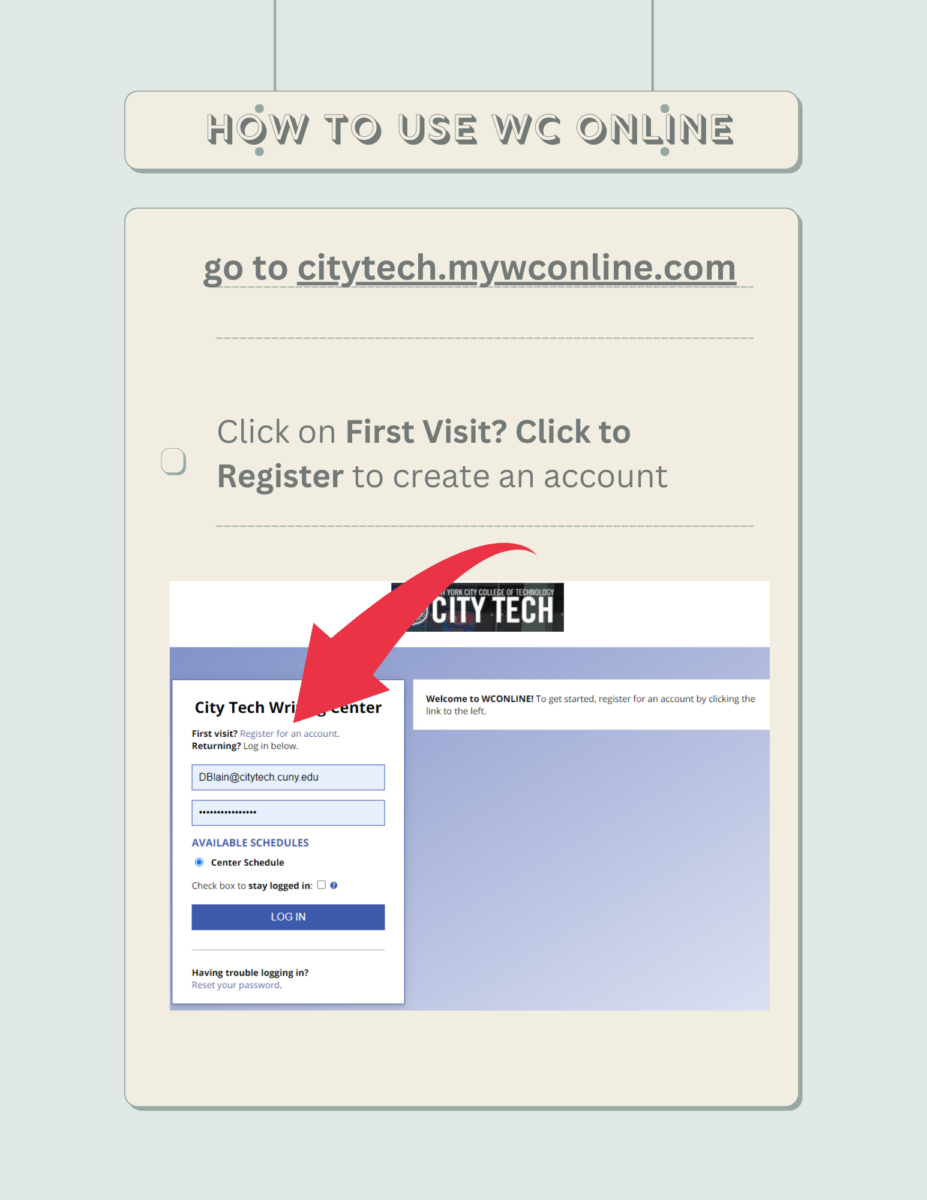
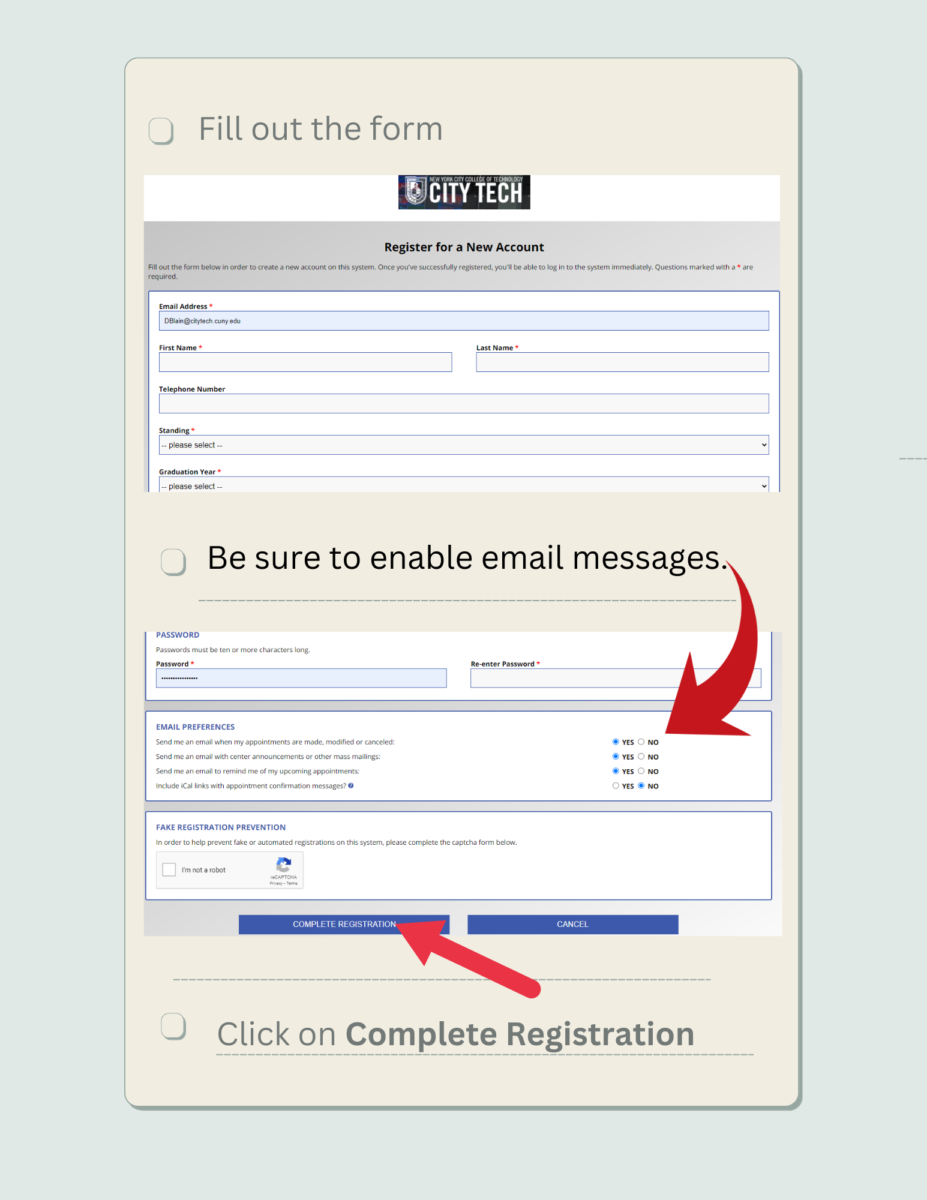
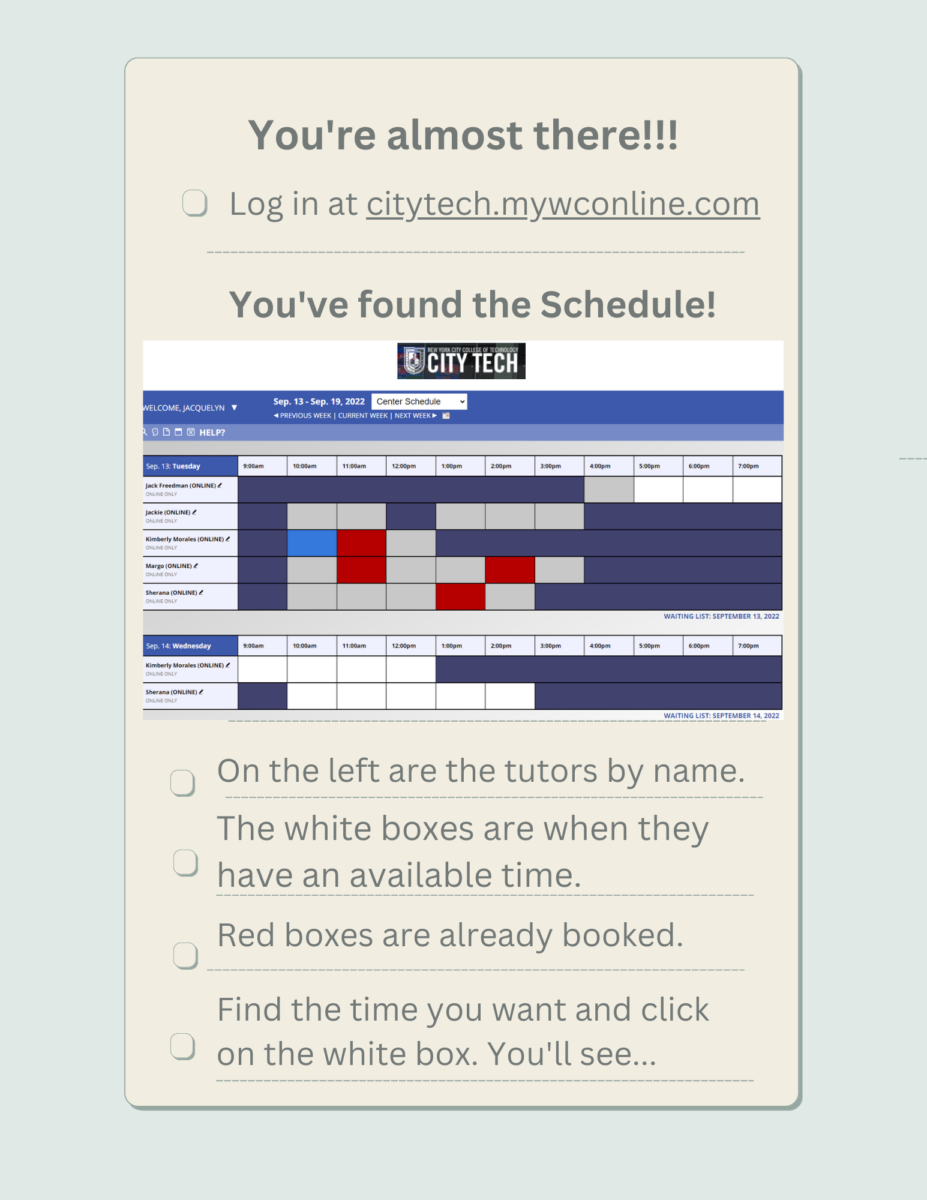
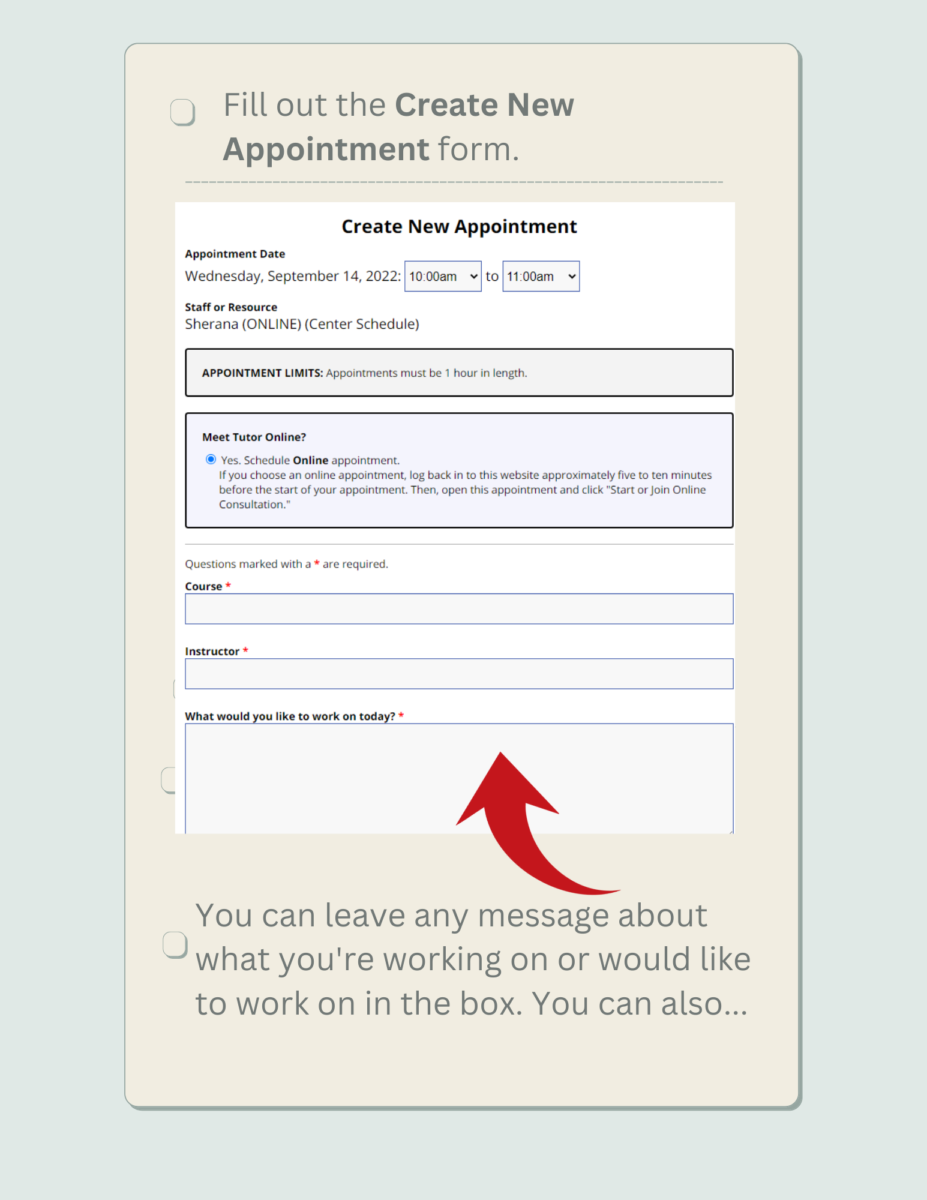
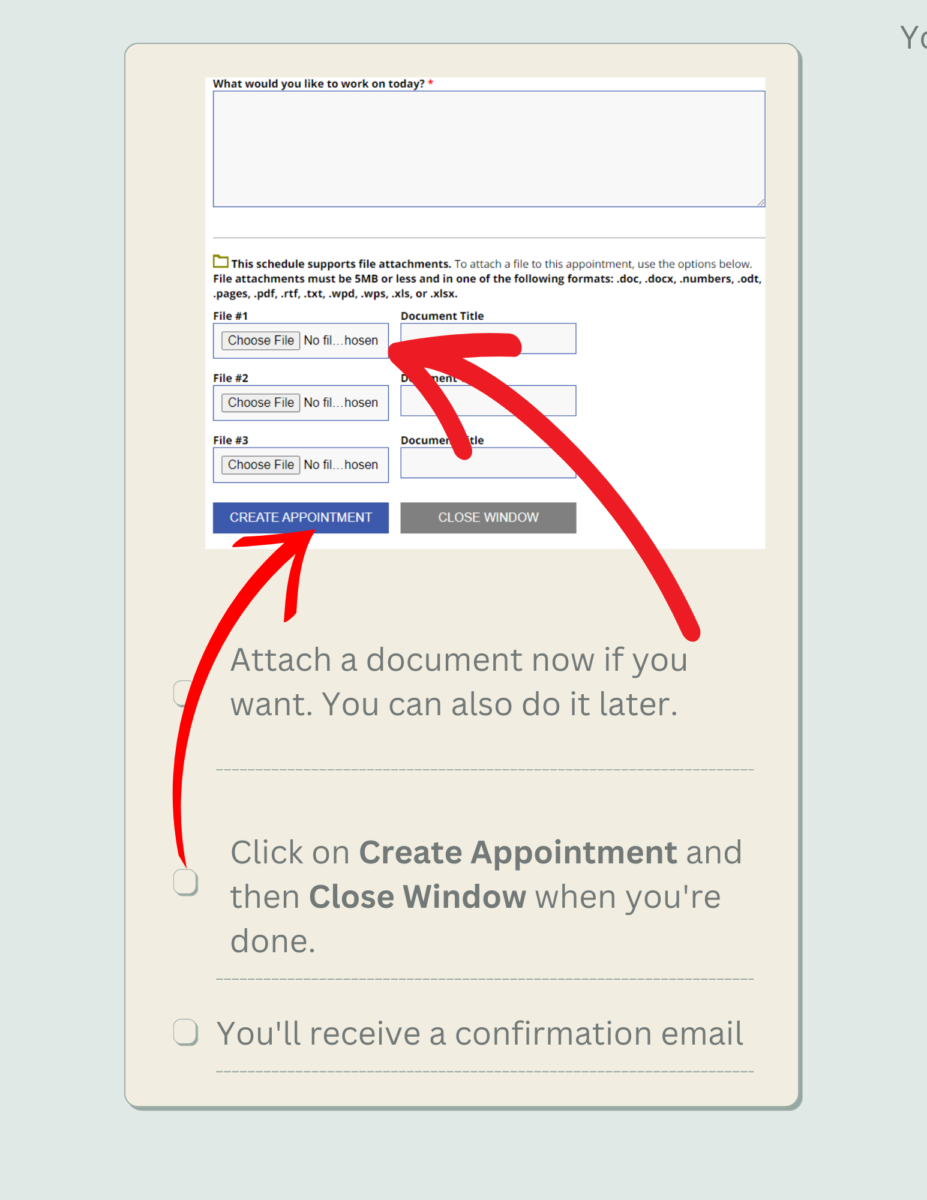
The writing center is open for appointments! Starting now, you can visit our new booking site: https://citytech.mywconline.com/. If you are new to this booking site, you will need to register to make appointments. This login is different from your other CUNY-related logins, but please use your City Tech email. For directions on how to register, please see the images below. As usual, our appointments will last for 45 minutes even though the booking is for one hour—this gives tutors a bit of time to do paperwork and prepare for the next writer.
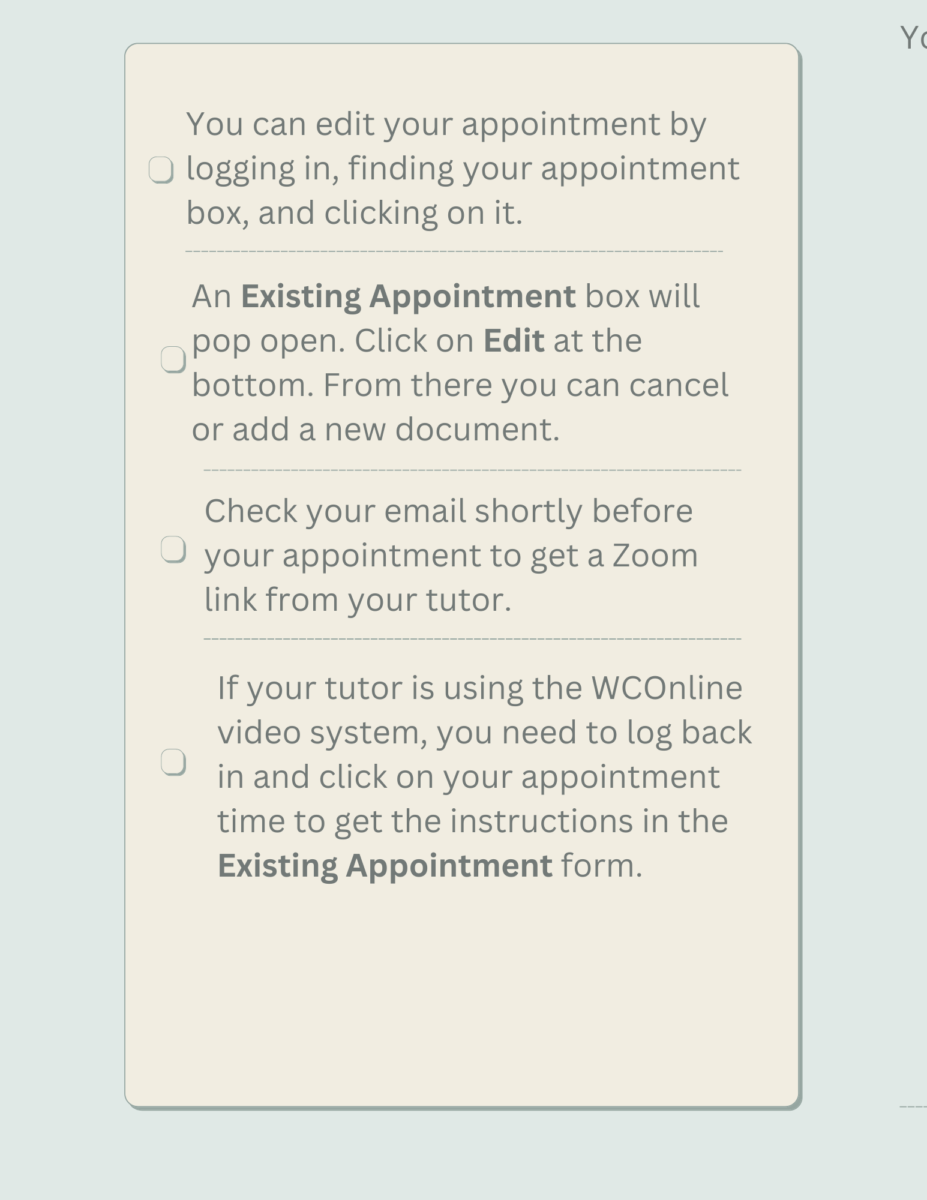
With this new booking site called WC Online, you have the ability to upload your draft or your assignment prompt ahead of time. You can also modify or cancel your appointment as needed. You can make appointments to meet with us online or in-person, so pay attention to the modality of your booking. Make sure you can check your email before your online appointments, because your tutor may send a link you can use to join in the session if you are meeting virtually.
If you want to learn more about our tutors, please visit here. If you have any questions, please reach out via email to WritingCenter@citytech.cuny.edu.
We can’t wait to work with you on your drafts!
Booking Policies
- You can make one one-hour session per day.
- You can make two one-hour sessions per week.
- You can make appointments up to two weeks in advance.
- You can join as many workshops each week as you’d like – there’s no limit. To join, click on the “Workshops” tab for the Zoom link once it’s live.
Late Policy:
- The length of an appointment is 45 minutes. If you’re late, that amount of time will be deducted from that 45 minutes. In other words, if your appointment is from 10-10:45 and you arrive at 10:10, your appointment will still end at 10:45.
- If you know you’re running late, communicate with us so we can plan to wait and not mark it as a no-show after 10 minutes.
- After 15 minutes, it’s marked as a no-show which has other consequences (see the No Show Policy).
Cancellation/No-Show Policy:
- You can cancel any appointment but need to do that two hours prior to your scheduled time. Students who do not cancel in time and fail to appear for a session will be counted as a “no-show.”
- After two no-shows, you are not allowed to book further appointments until you reach out to the Director at writingcenter@citytech.cuny.edu, and your existing appointments will be canceled.
- Students who abuse the scheduling system or our policies by repeatedly skipping appointments and thus depriving other students of our support, or creating separate accounts to avoid our policies are no longer eligible to receive our services.
How To Get Ready For An Appointment:
- Bring assignment prompt so we’ll know what your instructor is asking for (you can email this early if you’d like).
- Bring the draft, notes, or outline to the meeting. However, it would be best if they’re also posted early if that’s possible; be sure to let us know where it is.
- Bring any other relevant material that might help, such as instructor-provided templates or models of the assignment.
- Write down your top three concerns about this assignment as well as what you would like to accomplish during the session.
- Login to WC Online at your appointment time, if you’re meeting a tutor virtually, and check your e-mail for any messages from them.